Everything you need to set up TabEye, tune your alerts and fix the occasional hiccup.
Last updated: July 7, 2026
Getting started
Install and pin the extension
Open the TabEye page on the Chrome Web Store and click Add to Chrome.
Chrome asks to confirm the permissions. TabEye needs page access so it can read the tabs you choose to watch. It never reads anything else.
Click the puzzle-piece icon in Chrome's toolbar and press the pin next to TabEye, so it is always one click away.
GIF: pinning TabEye from Chrome's extensions menu.
Start your first monitor
Open the page you want to watch, exactly as you normally would. Pages that need you to be logged in work too, because everything runs in your own browser.
Click the TabEye icon. The popup opens on the Monitor tab.
Pick how often to check, from every 5 seconds to every 24 hours.
Click Start Monitoring This Tab. A small countdown overlay appears on the page and TabEye takes it from there.
GIF: starting a monitor from the Monitor tab in TabEye's popup.
You can now switch to other tabs, other windows or other apps. TabEye keeps checking on schedule.
Find your way around the popup
The popup has five tabs along the top:
Monitor is where you set up a watch for the current tab: interval, keyword, area selection and auto-stop.
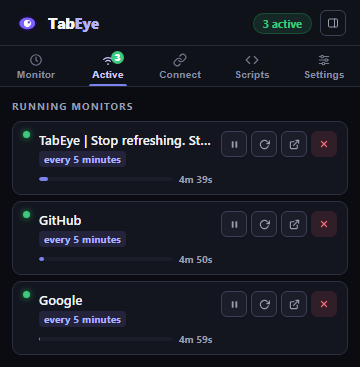
Active lists every running monitor with a live progress bar and countdown, plus per-tab pause, restart, jump-to-tab and remove buttons.
Connect holds your alert channels: sound, Discord webhook and Telegram bot.
Scripts is optional custom JavaScript for power users.
Settings covers detection mode, cooldowns, page-issue alerts and backup.
GIF: the view of the TabEye popup interface and it's various tabs
Use the side panel instead of the popup
Prefer to keep TabEye open while you browse? Click the side-panel icon in the popup's header and the same interface docks to the side of your browser window. Everything works identically in both views.
GIF: TabEye docked in Chrome's side panel next to a watched page.
Watching pages
Watch just part of a page
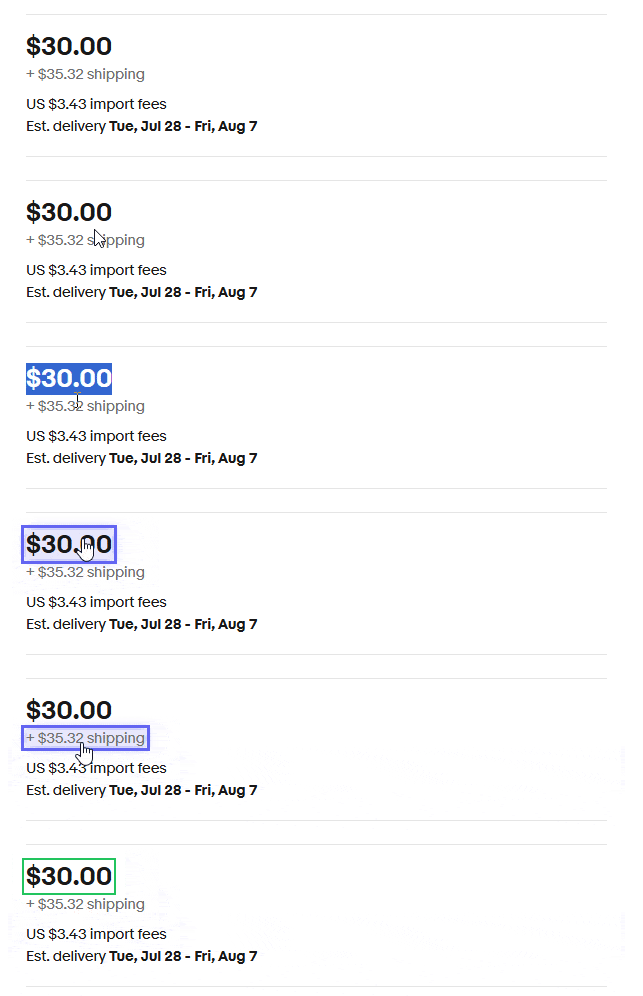
By default TabEye watches the whole page. On busy pages (rotating banners, ads, "recently viewed" widgets) it is better to watch only the part you care about, like a price or a stock label.
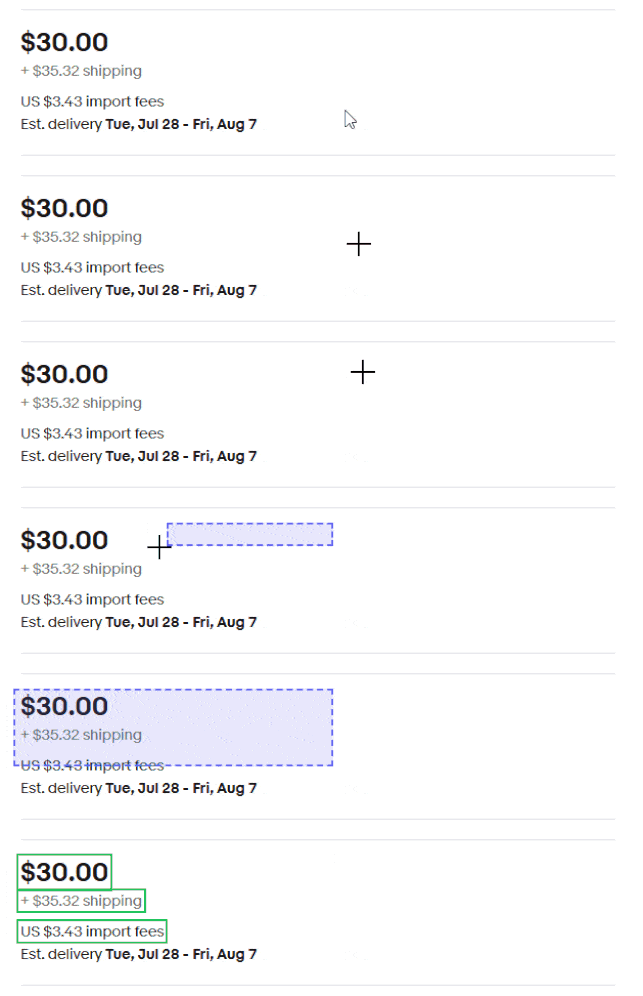
On the watched page, hold P and drag a box around the area you care about; or
Press Alt+Q and click individual elements to pick them one by one.
Press Esc at any time to cancel selecting.
To go back to watching the whole page, open the Monitor tab and click Reset next to the selection.
GIFs: picking elements withALT+Q and selecting page area withP.
Alert only on a keyword
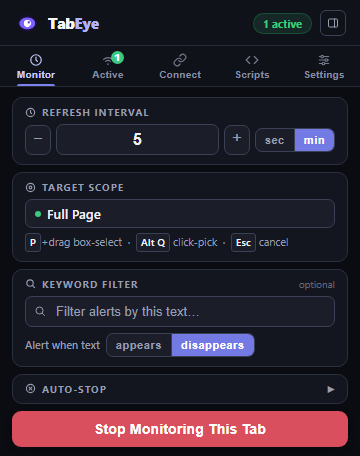
Sometimes "the page changed" is not what you care about, because what you really want is specific text. In the Monitor tab, type the text into the keyword field and choose a mode:
appears: alert when the text shows up. Example: watching for "add to cart" on a sold-out product.
disappears: alert when the text goes away. Example: watching for "sold out" to vanish.
Screenshot: keyword field with "add to cart" and the appears/disappears toggle.
Choose a detection mode
In Settings you can pick how TabEye decides that a change is worth an alert:
Instant alerts on the first detected change. Fastest, best for drops and restocks.
Confirmed waits until the change holds across two consecutive checks. Fewer false alarms on pages that flicker.
Live watches the page in real time without reloading it, using a DOM observer. Good for pages that update themselves, like dashboards or live scores.
Stop automatically
A monitor can switch itself off when its job is done. In the Monitor tab, under auto-stop, choose one of:
After N checks: run a fixed number of checks, then stop.
Keyword found: stop once the keyword appears.
Keyword gone: stop once the keyword disappears.
Auto-stop is Off by default, so monitors run until you stop them.
Manage running monitors
The Active tab lists every monitor with a progress bar and a countdown to the next check. Each row has buttons to:
Pause / resume the monitor without losing its settings.
Restart the countdown and check again right away.
Jump to the tab being watched.
Remove the monitor.
Screenshot: the Active tab with three monitors and their control buttons.
Alerts & integrations
Sound alerts
Open the Connect tab and enable sound alerts.
Optionally paste the address of a custom sound file (an https://…/alert.mp3 style link). Leave it blank for the built-in sound.
Click ▶ Test to hear it before you rely on it.
When an alert fires you'll also see a 🔇 Stop Alarm button at the top of the popup to silence it.
Discord alerts
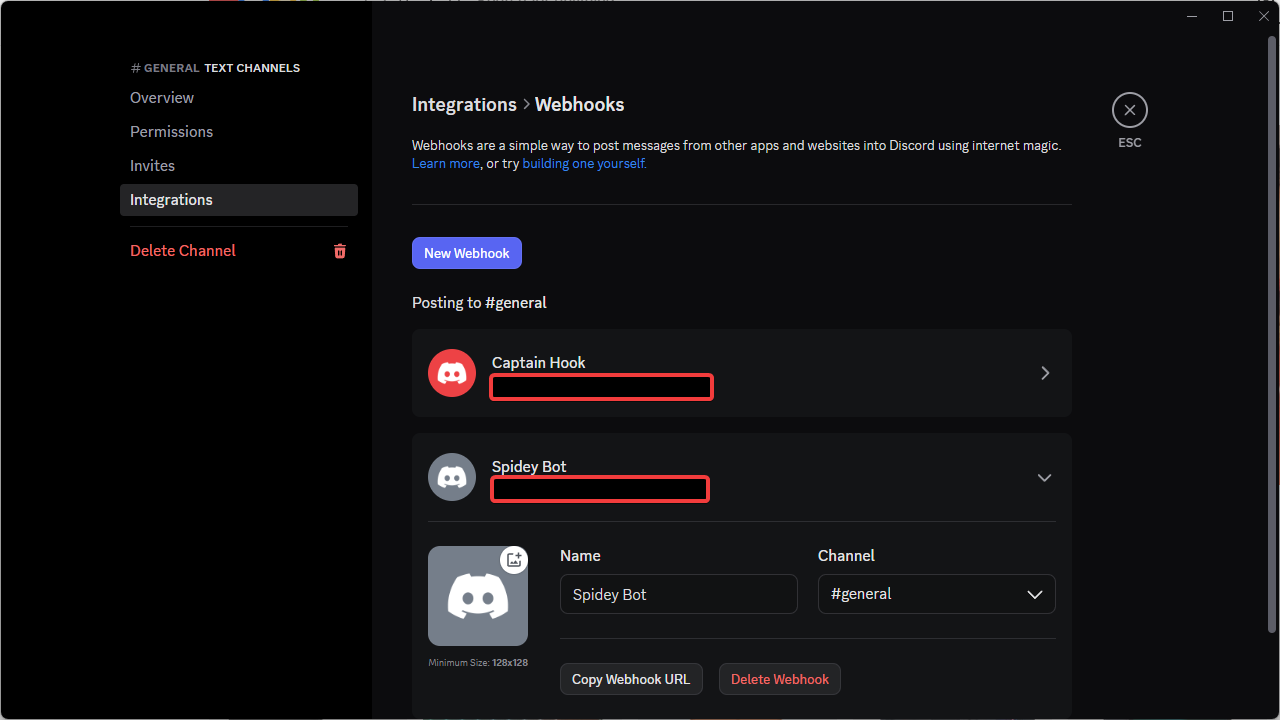
In your Discord server, open Server Settings → Integrations → Webhooks and create a webhook for the channel where you want alerts. Copy its URL.
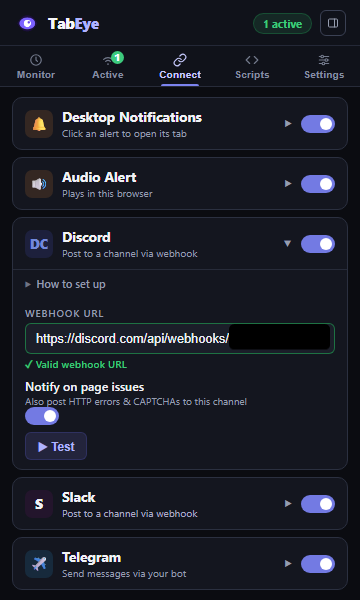
In TabEye's Connect tab, enable Discord and paste the webhook URL (it looks like https://discord.com/api/webhooks/…).
Click ▶ Test. A test message should appear in your channel.
Screenshot: Discord webhook settings and the pasted URL in TabEye's Connect tab.
Alerts include the watched page's title and address, sent straight from your browser to your webhook with no middleman.
Telegram alerts
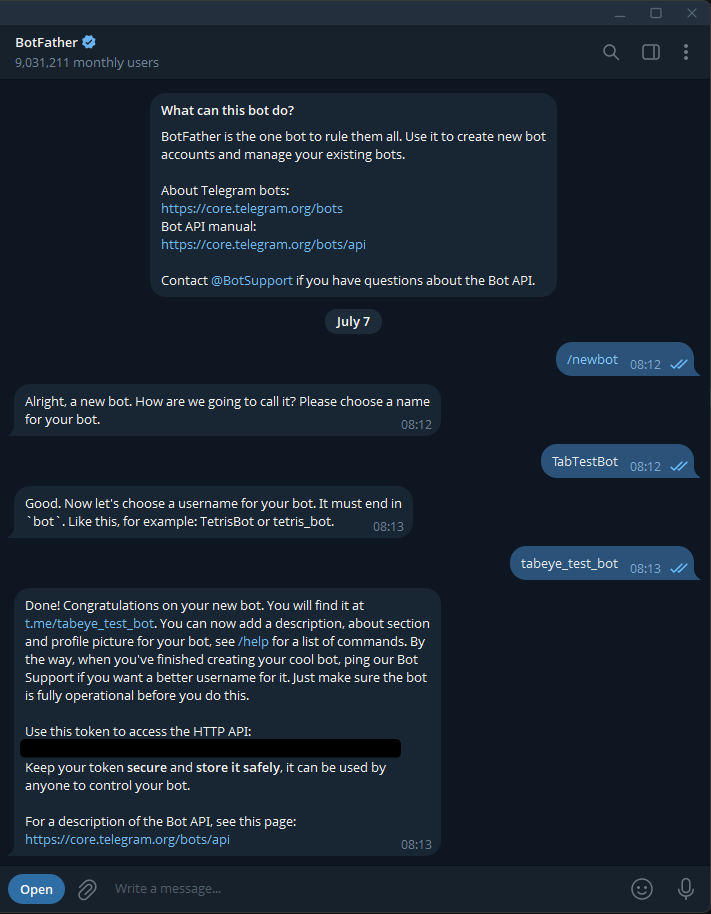
In Telegram, message @BotFather, send /newbot and follow the prompts. BotFather gives you a bot token like 123456789:ABCdef….
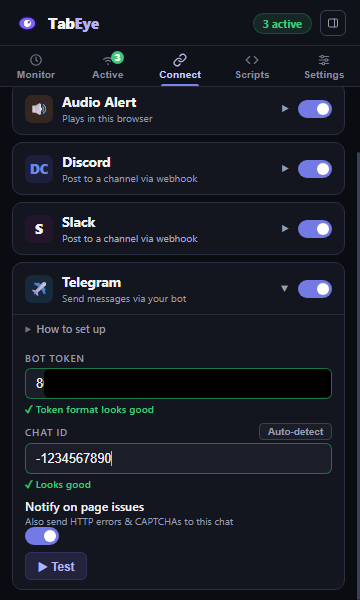
In TabEye's Connect tab, enable Telegram and paste the token.
Send any message to your new bot in Telegram (it can't message you first).
Back in TabEye, click Auto-detect next to the chat ID field and TabEye finds your chat automatically. You can also paste a chat ID by hand.
Click ▶ Test to confirm messages arrive.
Screenshot: BotFather's token message and TabEye's Telegram fields filled in.
Because Telegram reaches every device you use it on, this is the easiest way to get TabEye alerts on your phone.
Control TabEye from Telegram
Once Telegram is connected, you can manage your monitors remotely by messaging your bot:
Command
What it does
/status
List all active monitors with their numbers.
/stop N
Stop monitor number N.
/pause N
Pause monitor N (stops refreshing).
/resume N
Resume a paused or snoozed monitor.
/snooze N 30m
Mute alerts for monitor N for a duration (e.g. 30m, 1h, 2h) while checks keep running.
/screenshot N
Send a screenshot of monitor N's tab.
/help
Show the command list.
Page issue alerts: errors and CAPTCHAs
A watch is only useful if the page is actually loading. In Settings, TabEye can alert you separately when something is wrong with the page itself:
HTTP errors: alert when a monitored page returns an error status like 404 or 500.
CAPTCHA detection: alert when a "verify you're human" challenge appears.
Auto-pause on issue: automatically pause the monitor when an error or CAPTCHA is detected, so it stops reloading a broken page.
Issue sound: an optional separate sound for these alerts, so you can tell "the page changed" from "the page needs you".
Settings & data
Alert cooldown
The cooldown sets the minimum gap between repeat alerts for the same tab. If a page changes constantly, this stops TabEye from firing over and over. Set it to 0 to alert on every detected change.
Polite while you type
If you're filling in a form on a watched page, a refresh would wipe your typing. TabEye pauses its countdown while you type and resumes after you've been idle for a few seconds. The idle delay is adjustable in Settings.
Focus on alert and pause on change
Focus on alert: when a change is detected, TabEye switches you straight to the changed tab and focuses its window. Handy for time-critical drops.
Pause on change: when a change is detected, the tab stops refreshing so the changed page stays on screen exactly as it alerted. Resume from the on-page widget or the Active tab.
Back up and restore
TabEye stores everything locally in your browser. There is no account and no cloud sync. To move your setup to another computer:
In Settings, click Export to save your scripts and settings to a file.
On the other device, click Import and choose that file.
Active monitors are not included in the backup, so start those fresh on the new device.
Custom scripts (advanced)
The Scripts tab lets power users run their own JavaScript when monitor events happen. Each script has a name, an optional URL pattern (like *.example.com) so it only runs on matching pages, and a trigger:
onChange: the page content differs from the last check.
onAlert: an alert fires.
onKeywordFound / onKeywordLost: the keyword appears or disappears.
onStart: the monitor starts.
onNoChange: a check ran and nothing changed.
onCheck: every check, changed or not.
Scripts are entirely optional. TabEye works fully without them.
Troubleshooting
I'm not getting alerts
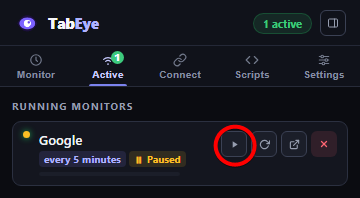
Open the Active tab and check the monitor is actually running. A paused monitor shows an amber dot and a frozen countdown; press its play button to resume.
Check your keyword mode. If it's set to appears but the text is already on the page (or vice versa), no alert will fire. Clear the keyword to alert on any change.
Check the alert cooldown in Settings. If the page changed twice within the cooldown window, the second change is deliberately silent.
If you're in Confirmed mode, remember it needs the change to persist across two checks, so a change that flickers away is intentionally ignored. Switch to Instant if you want every change.
Check whether an auto-stop rule ended the monitor (see "Monitor stopped by itself" below).
Screenshot: a paused monitor in the Active tab with the resume button circled.
I get too many false alarms
Watch only the part of the page that matters: press P on the page and drag a box around it. Ads, clocks and rotating banners outside your selection are then ignored.
Add a keyword so TabEye alerts only when the text you care about appears or disappears.
Switch detection mode to Confirmed in Settings. It waits for a change to hold across two checks before alerting.
Raise the alert cooldown so repeat alerts for the same tab are spaced out.
GIF: a selection box drawn around only elements you care about.
No sound plays
In the Connect tab, click ▶ Test next to the sound settings. If the test works, sound itself is fine.
If you set a custom sound URL, make sure it's a direct link to an audio file (ending in .mp3 or similar) served over https://. Clear the field to fall back to the built-in sound.
Check your system volume and that Chrome isn't muted in your operating system's volume mixer.
Make sure the site isn't muted: Chrome can mute tabs per-site (right-click a tab to check).
Discord test fails
Check the webhook URL starts with https://discord.com/api/webhooks/ and was copied completely, with no spaces at either end.
Make sure the webhook still exists. If it was deleted in Discord's server settings, create a new one and paste the new URL.
Confirm the webhook posts to a channel that still exists and that you can see.
Telegram messages don't arrive
Check the bot token format: it should look like 123456789:ABCdef…, exactly as BotFather sent it.
Message your bot first. Telegram bots cannot start a conversation. Send it any message, then click Auto-detect in TabEye to pick up the chat ID.
If you regenerated the token via BotFather, the old one stops working. Paste the new token into TabEye.
Click ▶ Test after each fix until the test message arrives.
The countdown looks frozen or the monitor seems asleep
First check it isn't simply paused, whether by you, by a Telegram /pause, or by auto-pause after a page issue. The Active tab shows paused monitors in amber.
If Chrome put the watched tab to sleep to save memory, TabEye notices within a minute or two and wakes it back up on its own. Give it a moment.
Typing on the watched page also pauses the countdown on purpose; it resumes a few seconds after you stop typing.
Remember Chrome itself must be running for checks to happen. TabEye can't check pages while the browser is closed.
A monitor stopped by itself
Check the monitor's auto-stop rule: After N checks, Keyword found and Keyword gone all end the monitor on purpose when their condition is met.
Check whether auto-pause on issue kicked in after an HTTP error or CAPTCHA. That pauses rather than stops, and you can resume from the Active tab once the page is healthy.
If the watched tab was closed, its monitor ends with it. Reopen the page and start a new monitor.
I keep getting CAPTCHA or error alerts
Some sites show "verify you are human" challenges when a page is refreshed very frequently. If that happens:
Open the watched tab and complete the challenge once, then resume the monitor.
Increase the check interval. Checking every 30 to 60 seconds instead of every 5 makes most sites much happier.
Consider Live detection mode for pages that update themselves; it watches without reloading, which avoids triggering rate limits entirely.
Leave auto-pause on issue enabled so TabEye stops hammering a page that's asking for a human.
The page refreshed while I was filling in a form
This shouldn't happen: TabEye pauses the countdown while you type and resumes only after you've been idle. If a refresh still caught you mid-sentence, raise the idle seconds setting in Settings so TabEye waits longer after your last keystroke before resuming checks.
My settings are gone on another computer
That's expected: TabEye keeps everything in local browser storage on each device, with no account and no cloud sync. Use Export in Settings on your old device and Import on the new one to carry your scripts and settings across. Active monitors are per-device and are not included.
Still stuck?
Have a look at the FAQ for the most common questions, or reach out via the support link on TabEye's Chrome Web Store page.
No results. Try a different word, for example telegram, keyword, sound or captcha.
 TabEye